

Computer Science | CBSE XII | Computer System Class 11 Notes with Diagrams – CPU, Memory & Software Explained Simply (Chapter 1) | NCERT Solutions For Class 11 Computer Science Chapter 1 | Best Guide 2026. It is required for Grade 11 students to build a strong foundation in the subject. Understanding the chapter thoroughly helps students grasp key concepts, improve comprehension, and perform well in exams.
In this article, Computer Science | CBSE XII | Computer System Class 11 Notes with Diagrams – CPU, Memory & Software Explained Simply (Chapter 1) | NCERT Solutions For Class 11 Computer Science Chapter 1 | Best Guide 2026, we (ThinkSphereEdu.com) provide a detailed explanation to make learning easier and more effective. Whether you are a student looking for well-explained solutions or a parent guiding your child, this guide will be a helpful resource for mastering the chapter with confidence.
- What is a computer system? (Class 11 Computer Science Chapter 1 Notes)
- Evolution of computers (Computer System Class 11 Notes)
- Computer memory (Types of Memory Class 11 Notes)
- Data transfer between memory and CPU (Computer System Class 11 Notes pdf)
- Microprocessors and microcontrollers (Computer System Class 11 Diagram)
- Data and information (Computer System Class 11 Notes pdf)
- Software (Class 11 Computer Science Chapter 1 Notes)
- Operating system (Computer System Class 11 Notes pdf)
- Exercise (Computer System Class 11 Notes pdf)
CBSE | Computer Science | Computer System Class 11 Notes with Diagrams | Class 11
What is a computer system? (Class 11 Computer Science Chapter 1 Notes)
A computer takes in data, processes it, and gives out a result. On its own, a computer is just hardware – add software to it, and it becomes a “computer system.”
Four main parts work together:
- CPU – the brain, does the actual processing
- Primary memory – short-term working memory
- Input device – feeds data in
- Output device – shows the result
- Secondary storage – keeps data permanently
Inside the CPU itself are two workers: the Control Unit (CU), which directs traffic and interprets instructions, and the ALU, which does the actual math and logic. There’s also a small ultra-fast memory called registers, used to hold data mid-calculation.

Input devices (teal/blue box above shows the idea) also include scanners, touch screens, and even voice input (like Google voice search).
Output devices include projectors, speakers, headphones, and even 3D printers, which are now being explored for building body-organ prototypes in medicine.
Evolution of computers (Computer System Class 11 Notes)
Computing didn’t start with electronics – it goes back to a simple counting tool. Here’s the arc, condensed into four big leaps:
- Calculators (500 BC–1890): Abacus (simple arithmetic) -> Pascaline by Blaise Pascal (1642) -> Babbage’s Analytical Engine (1834, considered the base of modern computers) -> Hollerith’s Tabulating Machine (1890, first step toward “programming”)
- Stored-program machines (1937–1945): Turing’s theoretical machine -> Von Neumann’s idea of storing both data and program in memory -> EDVAC/ENIAC, the first real computers built on this idea
- Transistor (1947): Bell Labs replaced bulky vacuum tubes with tiny semiconductor transistors
- Integrated Circuit (1970): An entire circuit squeezed onto a silicon chip – this is what shrank computers down to desktop and laptop size

After that: IBM’s first home PC (1981), Apple’s Macintosh (1984), the GUI replacing command-line systems, the World Wide Web boom in the 1990s, then laptops, smartphones, and now wearables and IoT devices powered by AI.
Computer memory (Types of Memory Class 11 Notes)
Memory is measured in bits and bytes. A bit is a single 0 or 1. 4 bits = a nibble, 8 bits = a byte. From there it just keeps multiplying by 1024: KB -> MB -> GB -> TB -> PB -> EB -> ZB -> YB.

There are different “levels” of memory, trading off speed against size:
- Registers – tiniest, fastest, sit right inside the CPU
- Cache – very fast memory between CPU and RAM, stores frequently used data so the CPU doesn’t wait
- RAM (Primary memory) – volatile (wiped when power goes off), holds what’s currently running
- ROM – non-volatile, stores things like the boot loader that starts up the OS
- Secondary storage – non-volatile, slow but huge (HDD, SSD, pen drive, CD/DVD) – permanent storage

Data transfer between memory and CPU (Computer System Class 11 Notes pdf)
Components talk to each other over physical wires called a bus. There are three kinds, and together they form the system bus:
- Data bus – carries the actual data, so it’s bidirectional (CPU can read or write)
- Address bus – carries the memory address the CPU wants to access – unidirectional, only CPU –> memory
- Control bus – carries signals like “read” or “write” – also unidirectional
A separate hardware piece called the memory controller actually places/fetches the data on the bus during read/write operations.


Microprocessors and microcontrollers (Computer System Class 11 Diagram)
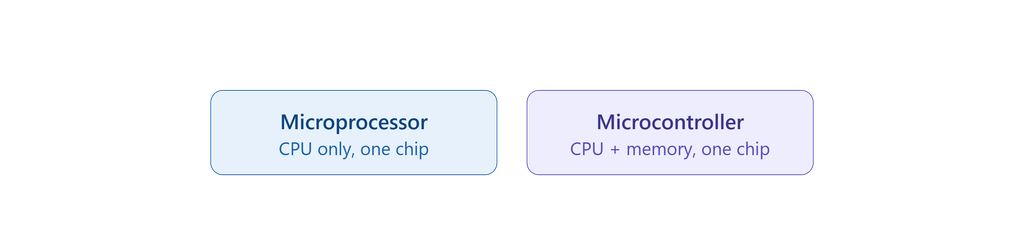
A microprocessor is a CPU squeezed onto one chip – that’s basically what “CPU” means today. Table 1.2 in the chapter tracks 5 generations, from the Intel 8080 (1971, 1KB memory, single core) to modern multicore chips like Pentium/Celeron/Xeon (64-bit, gigahertz speeds).

Key specs used to classify microprocessors:
- Word size – max bits it can process at once (now 16–64 bits)
- Memory size – how much RAM it can address
- Clock speed – pulses per second (measured in GHz today)
- Cores – how many tasks it can truly run in parallel (dual/quad/octa-core)
A microcontroller is different – it’s a complete mini-computer on one chip (CPU + fixed RAM + ROM + I/O ports), built for one specific job. That’s why washing machines, remote controls, and pen drives use microcontrollers instead of full microprocessors – smaller and cheaper.

Data and information (Computer System Class 11 Notes pdf)
A computer treats everything – text, images, videos, instructions – as data. There are three types:

A quick data lifecycle worth mentioning:
- Capturing – gathering data (keyboard, barcode scanner, social media, satellite sensors)
- Storage – saving it for later use, on devices or big data servers
- Retrieval – fetching it back when needed
- Deletion & recovery – “deleting” a file just marks its space as free (data isn’t actually erased instantly), which is why deleted files are often recoverable – good for accidental deletes, risky if an old hard drive is thrown away without properly wiping it first.
Software (Class 11 Computer Science Chapter 1 Notes)
Hardware is useless without software telling it what to do. Software splits into three broad categories:

A few extra details worth remembering:
- System software – OS (Windows, Linux), system utilities (antivirus, disk cleaner) and device drivers (translate between OS and hardware like a printer)
- Programming tools – languages (low-level: machine/assembly language; high-level: C++, Java, Python), translators (assembler for assembly, compiler translates the whole program at once, interpreter translates line-by-line), and IDEs (editor + build tools + debugger, e.g. Python IDLE)
- Application software – general purpose (Photoshop, browsers – usable by anyone) vs customised (school management software – built for one specific need)
- FOSS vs Proprietary – Free and Open Source Software (Ubuntu, Python, Firefox) lets anyone see/improve the code; proprietary software (Windows, Tally) must be bought from the owner; freeware (Skype) is free to use but the code isn’t open.
Operating system (Computer System Class 11 Notes pdf)
The OS is the most essential system software – a resource manager that runs the show for CPU, RAM, disk, and every device, while giving humans a way to interact with the machine.
There are five ways users can interact with an OS:

(Examples: MS-DOS/Unix use command; Windows/Ubuntu use GUI; Android/iOS use touch; Siri/Cortana/”OK Google” use voice; some Android and iOS devices use gestures like waving or tilting.)
Behind the scenes, the OS constantly juggles four jobs:

- Process management – decides which task gets the CPU and when
- Memory management – gives and takes back RAM as programs open/close
- File management – creates, updates, deletes, and protects files on disk (so one user can’t peek at another’s files)
- Device management – talks to device drivers so every connected device (printer, mouse, etc.) works properly and securely
Before starting the exercises read the Notes section carefully

NCERT Solutions for Class 11 Computer Science Chapter 1 – Computer System (All Exercise Questions Answered)
Exercise (Computer System Class 11 Notes pdf)
1. Name the software required to make a computer functional. Write down its two primary services.
Answer: The software required to make a computer functional is the Operating System (OS).
Its two primary services are:
- Managing and running application programs by loading them into memory and allocating CPU time.
- Providing an interface to the user so that the user can interact with the computer.
2. How does the computer understand a program written in high level language?
Answer: A computer cannot directly understand a high-level language. A language translator such as a compiler or interpreter converts the high-level language program into machine language, which the computer can understand and execute.
3. Why is the execution time of the machine code less than that of source code?
Answer: Machine code is directly understood by the computer, so it can be executed immediately. Source code must first be translated into machine code by a compiler or interpreter, which takes extra time. Therefore, machine code takes less time to execute.
4. What is the need of RAM? How does it differ from ROM?
Answer: RAM (Random Access Memory) is needed to store data and programs temporarily while the computer is working. The CPU directly uses RAM for processing.
Difference between RAM and ROM:

5. What is the need for secondary memory?
Answer: Secondary memory is needed to store data, programs and results permanently for future use. It has a larger storage capacity than primary memory and keeps data safe even when the power is turned off. Examples include hard disks, CDs/DVDs and pen drives.
6. How do different components of the computer communicate with each other?
Answer: Different components of a computer communicate with each other through physical wires called buses. There are three types of buses:
- Data Bus – transfers data.
- Address Bus – transfers memory addresses.
- Control Bus – transfers control signals.
Together, these buses form the system bus.
7. Draw the block diagram of a computer system. Briefly write about the functionality of each component.
Answer:

Functions of Components:
- Input Device: takes raw data/commands from the user (keyboard, mouse, scanner) and converts them into digital form the computer can process.
- CU (Control Unit): part of the CPU; directs and coordinates all operations, interprets instructions, and controls the flow of data between memory, ALU, and I/O devices.
- ALU (Arithmetic Logic Unit): part of the CPU; carries out all arithmetic (add, subtract, etc.) and logical (comparison) operations required by a program.
- Primary Memory: temporary working memory (RAM + ROM) that holds the program and data currently being used by the CPU for fast access.
- Output Device: takes the processed result from the CPU and presents it in a human-readable form (monitor, printer, speaker).
- Secondary Storage: non-volatile storage (HDD, SSD, pen drive) that holds data and programs permanently, even when the power is off.
8. What is the primary role of system bus? Why is data bus is bidirectional while address bus is unidirectional?
Answer: The primary role of the system bus is to transfer data, addresses and control signals between different components of a computer.
- The data bus is bidirectional because data can move both from the CPU to memory and from memory to the CPU.
- The address bus is unidirectional because only the CPU sends the address of the memory location to be read or written.
9. Differentiate between proprietary software and freeware software. Name two software for each type.
Answer:

Examples of Proprietary Software:
- Microsoft Windows
- Tally
Examples of Freeware Software:
- Skype
- Adobe Reader
10. Write the main difference between microcontroller and microprocessor. Why do smart home appliances have a microcontroller instead of microprocessor embedded in them?
Answer:
- A microprocessor is the CPU on a single chip, mainly used for general-purpose computing. It requires external components like memory and input/output devices to function.
- A microcontroller is an integrated chip that contains CPU, memory, and input/output ports all in one. It is designed for specific control-oriented tasks.
Smart home appliances use microcontrollers because they are compact, cost-effective, consume less power, and can directly control devices without needing extra components.
11. Mention the different types of data that you deal with while browsing the Internet.
Answer: There are several types of data available that we deal with while browsing the Internet.
- Text (articles, blogs, messages)
- Images (photos, graphics, memes)
- Audio (music, podcasts, voice messages)
- Video (movies, clips, tutorials)
- Numerical data (scores, statistics, ratings)
- Structured information (forms, tables, records)
12. Categorise the following data as structured, semi-structured, and unstructured:
- Newspaper
- Cricket Match Score
- HTML Page
- Patient records in a hospital
Answer: Categorisation of data
- Newspaper -> Unstructured (contains text, images, ads in free format)
- Cricket Match Score -> Structured (numerical data arranged in tables)
- Patient records in a hospital -> Structured (organized in databases with defined fields)
13. Name the input or output device used to do the following:
- To output audio
- To enter textual data
- To make hard copy of a text file
- To display the data or information
- To enter audio-based command
- To build 3D models
- To assist a visually impaired individual in entering data
Answer: Input/Output Devices
- To output audio -> Speaker
- To enter textual data -> Keyboard
- To make hard copy of a text file -> Printer
- To display the data or information -> Monitor
- To enter audio-based command -> Microphone
- To build 3D models -> 3D Scanner
- To assist a visually impaired individual in entering data -> Braille Keyboard
14. Identify the category (system, application, programming tool) of the following software:
- Compiler
- Assembler
- Ubuntu
- Text editor
Answer: Categories of Software
- Compiler -> Programming Tool
- Assembler -> Programming Tool
- Ubuntu -> System Software (Operating System)
- Text Editor -> Application Software